Best IPTV for Roku: What Actually Works in 2026
Roku is the trickiest streaming device for IPTV — and most guides won't tell you that. Here is the honest picture, the mirroring method that works today, and the smarter setup for your Roku TV.
- Screen mirroring method, step by step
- 22,000+ live channels via Watchit
- Test your exact setup with a 24-hour trial
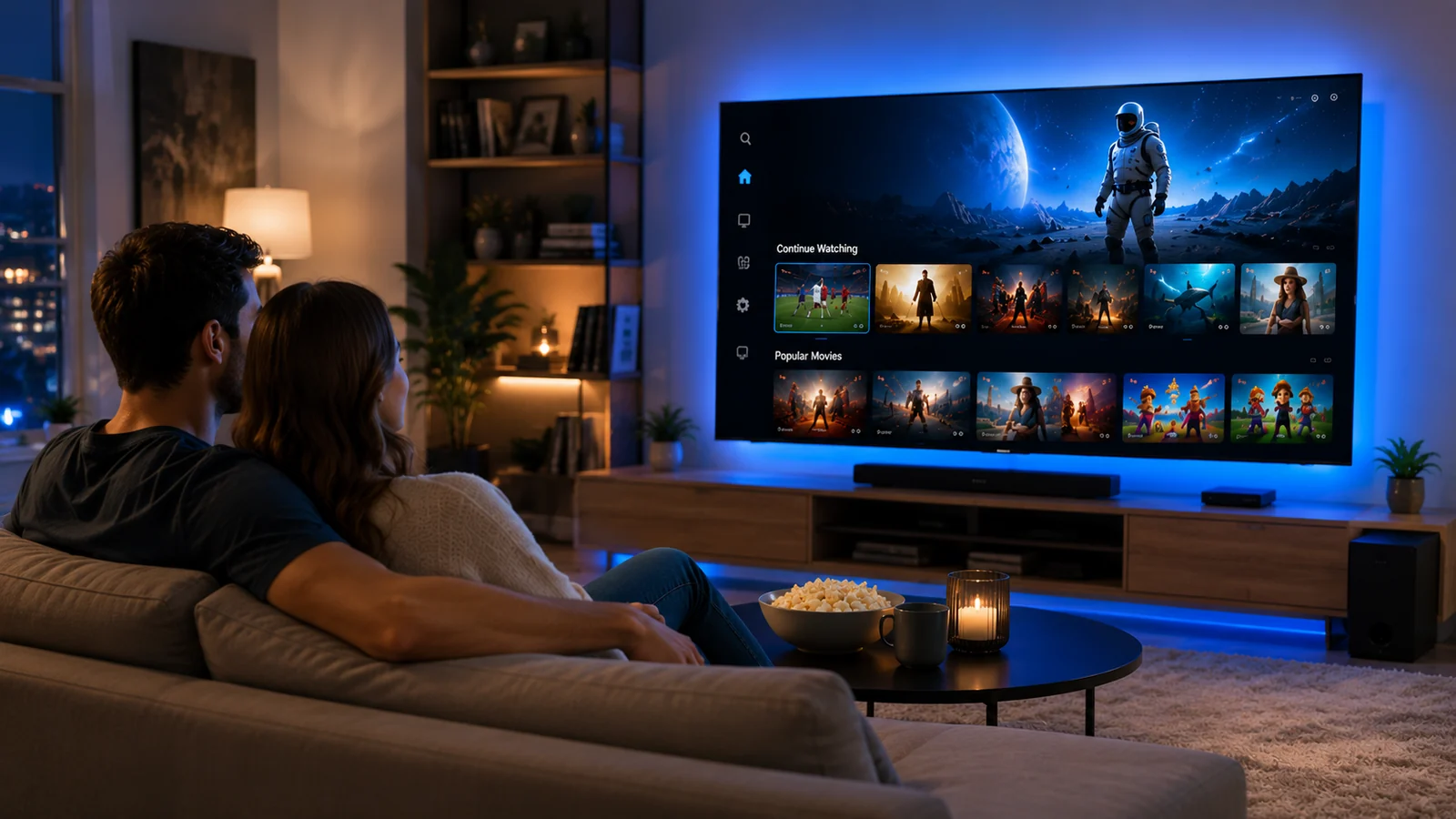
Searching for the best IPTV for Roku puts you in an awkward spot, and most articles dodge it: Roku runs a closed platform, and the third-party IPTV player channels that once filled its store have largely been removed. That doesn't mean your Roku TV is useless for live TV — it means the path is different. This guide explains why Roku is the hardest device for IPTV, walks through the screen mirroring method that works today with real steps, and shows the $25 workaround that turns any Roku TV into a first-class IPTV screen. Everything here is testable with a 24-hour Watchit trial before you spend a dollar.
A Service Built to Survive Roku's Limitations
Watchit isn't tied to any one app store, which is exactly what a Roku owner needs. Your subscription is a set of credentials that works across mirroring sources, sticks, and every other screen in the house.
22,000+ Live Channels
News, sports, movies, kids, and international categories in one guide. Whether you mirror to your Roku TV or plug in a stick, the full lineup travels with your login.
80,000+ Movies & Series
A deep on-demand library sits alongside live TV, so the Roku household that mostly binges shows gets as much value as the one glued to live events.
Anti-Freeze Servers
Mirroring already adds one fragile link to the chain. Stable source streams in 4K and FHD where available keep the picture watchable instead of compounding the lag.
Device-Agnostic Credentials
One login works in IPTV Smarters Pro on Android, TiviMate on a FireStick, or a Windows player you mirror from. Switch methods anytime without contacting anyone.
24/7 WhatsApp Support
Roku setups raise more questions than most. Real humans answer around the clock, whether you're troubleshooting mirroring audio sync or moving to a new stick.
24-Hour Free Trial
Roku compatibility is exactly the kind of thing you should verify before paying. Run the trial on your actual TV, your actual phone, and your actual Wi-Fi first.
Watch Watchit on a Roku TV via Screen Mirroring
No technical skills needed. Pick a plan, receive your login credentials by email, and start watching on any device.
Enable mirroring on the Roku
Press Home on your Roku remote, go to Settings, then System, then Screen mirroring, and set the mirroring mode to Prompt or Always allow. AirPlay users on newer Roku models enable it under Settings, then Apple AirPlay and HomeKit.
Load Watchit on your source device
On an Android phone or tablet, install IPTV Smarters Pro and sign in with the Xtream Codes login Watchit sends after checkout. On Windows, a desktop player like VLC or Smarters for PC works the same way.
Cast the screen
On Android, open Quick Settings and tap Smart View, Cast, or Screen Cast depending on your brand, then select your Roku from the device list. On Windows 10 or 11, press Win+K and pick the Roku.
Accept the prompt and go full screen
Approve the connection on the TV, open a channel in your player, and rotate the phone to landscape for a full-screen picture. Plug the source device into a charger — it must stay awake for the stream to continue.
Test everything during your trial
Run the 24-hour trial through this exact chain before subscribing. Check channel zapping speed, audio sync, and whether your Wi-Fi handles a full evening without drops.
Why Roku Owners Still Pick Watchit
Plenty of providers pretend Roku is a solved problem. Watchit tells you the truth up front, gives you a working method today, and hands you credentials flexible enough that a $25 hardware upgrade later takes five minutes instead of a support ticket.
- Works via mirroring today — and instantly on a FireStick or Android box tomorrow
- One subscription covers every method; standard plans run on 1 device at a time
- Multi-Screen plan ($140/12 months) covers 3 simultaneous screens for busy households
- EPG guide keeps 22,000+ channels browsable instead of overwhelming
- Pay with PayPal, credit card, or crypto — whichever you trust
- 24-hour trial means your Roku setup is proven before money moves

Find Out Tonight If Mirroring Works for You
The only Roku answer that matters is the one on your own TV. Grab a 24-hour trial, cast a game or a movie, and judge the picture with your own eyes.
Roku vs FireStick vs Android TV for IPTV
| Features | Feature | Roku | Fire TV Stick | Android TV / Google TV |
|---|---|---|---|---|
| Native IPTV player apps | Very limited — most removed from the store | Full selection (IPTV Smarters Pro, TiviMate) | Full selection via Play Store | |
| Sideloading allowed | No — closed platform | Yes (Downloader app) | Yes (APK install) | |
| Main IPTV method | Screen mirroring / AirPlay | Native app | Native app | |
| Picture quality ceiling | Limited by mirroring compression | 4K/FHD direct where available | 4K/FHD direct where available | |
| Extra hardware cost | $0 (uses your phone) or ~$25 stick | From about $25 | From about $20 (basic boxes) | |
| General streaming apps | Excellent — Roku's core strength | Excellent | Excellent | |
| Works with Watchit | Yes, via mirroring | Yes, natively | Yes, natively |
Choose Your IPTV Plan
Simple, transparent pricing. Every plan includes the full channel lineup, the VOD library, and 24/7 support. Cancel anytime.
3 Months
The easy way to try premium IPTV without a long commitment.
$45 Save 44%
Get 3 Months- 22,000+ live channels
- 80,000+ movies & series (VOD)
- Full HD and 4K where available
- Works on 1 device at a time
- Anti-freeze servers and EPG guide
- 24/7 support on WhatsApp
6 Months
The balanced pick if you watch TV every day.
$80 Save 44%
Get 6 Months- Everything in the 3-month plan
- Priority anti-buffering streams
- Premium channels in 4K and Full HD
- Works on 1 device at a time
- Free updates and catch-up TV
- Fast 24/7 support
12 Months
The lowest monthly price. Our most popular plan.
$140 Save 50%
Get 12 Months- Everything in the 6-month plan
- The lowest price per month
- 22,000+ channels in 4K/FHD
- Premium anti-freeze network
- Multi-device ready
- VIP priority 24/7 support
Still not sure? Start a free trial before you buy.
IPTV on Roku in 2026: The Honest Answer
Here is the answer most pages bury under 800 words of throat-clearing: yes, you can watch IPTV on a Roku TV in 2026, but almost never through a native app installed from the Roku Channel Store. The best IPTV for Roku is really the best IPTV service that works around Roku — through screen mirroring, AirPlay on supported models, or a cheap companion device plugged into an HDMI port.
That distinction matters because searchers keep comparing roku iptv service options as if they were choosing between apps, when the real choice is between delivery methods. A subscription like Watchit gives you Xtream Codes credentials that work in dozens of players across Android, iOS, Windows, and Fire TV. None of those players needs to exist in Roku's store for your Roku TV to display the picture.
So set your expectations correctly from the start: your Roku is the screen, another device is the engine. Once you accept that, every method below makes sense — and the 24-hour trial lets you confirm the whole chain works in your living room before any plan is purchased.
Why Roku Is the Trickiest Device for IPTV (Closed Platform Explained)
Roku runs a closed operating system. Unlike Android-based devices, there is no Play Store equivalent full of independent players, and there is no sanctioned sideloading path for consumers. Every channel on a Roku must pass through Roku's own certification, and Roku's published developer policies restrict channels that stream content the developer doesn't have distribution rights to. That policy environment is why generic third-party IPTV player channels have largely disappeared from the store.
Compare that with a FireStick, where the Downloader app installs any APK in two minutes, or an Android TV box, where the Play Store carries mainstream players directly. On those platforms, an iptv subscription for Roku households becomes trivially portable — same login, native app, direct 4K/FHD streams where available.
There is a silver lining. Roku's tight control is part of why the platform is stable, fast, and beginner-friendly for mainstream streaming apps. It is a genuinely good streaming device; it is simply the weakest of the major platforms for third-party IPTV. Knowing that up front saves you from buying a second Roku hoping the store situation changed — it hasn't, and a FireStick handles IPTV natively for about $25.
IPTV vs Roku Channels: Two Different Things
The phrase “iptv vs roku” gets searched thousands of times, and it reflects a real confusion worth untangling. Roku channels are apps — self-contained services like the free ad-supported channels Roku promotes, or subscription apps you log into individually. IPTV, in the sense this site covers, is a single subscription that delivers thousands of live channels over the internet into whatever player app you choose.
- Roku channels: installed per-service from the Roku store, each with its own account, its own billing, and its own limited lineup.
- IPTV subscription: one login, one bill, 22,000+ live channels across news, sports, movies, entertainment, and international categories, plus 80,000+ VOD titles — displayed through a player app rather than a per-network app.
The two aren't rivals so much as different layers. Your Roku remains great at Roku channels. An IPTV subscription built for US viewers replaces the stack of separate live-TV bills with one guide — it just needs a friendlier device than Roku to run its player. If you're weighing total cost, one consolidated plan against four or five streaming logins is where the math gets interesting.
Working Methods to Watch IPTV on Roku (Screen Mirroring and Casting)
Two methods reliably put IPTV on a Roku screen in 2026, and both use hardware you already own.
Method 1: Android or Windows screen mirroring
Every current Roku supports Miracast-style mirroring. Enable it under Settings → System → Screen mirroring, then cast from Android (Smart View / Cast in Quick Settings) or Windows (Win+K). Your player — IPTV Smarters Pro on the phone, VLC or Smarters on the PC — plays the stream, and the Roku duplicates the screen. The full step-by-step appears in the setup section above.
Method 2: AirPlay from iPhone, iPad, or Mac
Most Roku models sold since 2021 include AirPlay 2. Open a compatible player on your Apple device, tap the AirPlay icon or mirror the whole screen from Control Center, and select the Roku. AirPlay generally holds sync a bit better than Miracast in practice.
Both methods share the same honest drawbacks: the source device must stay on and awake for the entire session, battery drain is real, picture quality is capped by mirroring compression rather than the stream itself, and a phone call or notification can interrupt playback. For an occasional game night this is perfectly serviceable. For every-evening viewing, the companion-stick route below is the better long-term answer — and either way, the 24-hour free trial exists precisely so you can judge mirroring quality on your own network first.
Roku IPTV Player Apps: What Still Exists and What Was Removed
If you searched the Roku store recently for the best iptv app for Roku, you noticed the shelves are nearly bare. Generic M3U and Xtream Codes players that once existed there have been removed over the past several years as Roku enforced its certification policies. What remains falls into a few narrow buckets.
- Media server clients: Plex and Jellyfin channels still exist on Roku. Technically, an advanced user can feed a playlist through a home media server and reach it from the Roku client, but the setup is fiddly, EPG support is limited, and channel zapping is slow compared with a real player.
- Web-based workarounds:
- Some providers point Roku users at browser-style tricks. These break often and are painful to navigate with a Roku remote.
- Occasional short-lived players: A player channel sometimes appears in the store and disappears later. Building your viewing habits on one is a gamble.
Our position is blunt: do not choose a provider because it claims a magical native Roku channel, and note that Watchit does not promise one either. Choose a provider whose credentials work everywhere — then pick your display method freely. The players worth learning, like IPTV Smarters Pro and the other options in our IPTV player roundup, live on Android, iOS, Fire TV, and Windows, where the platform actually welcomes them.
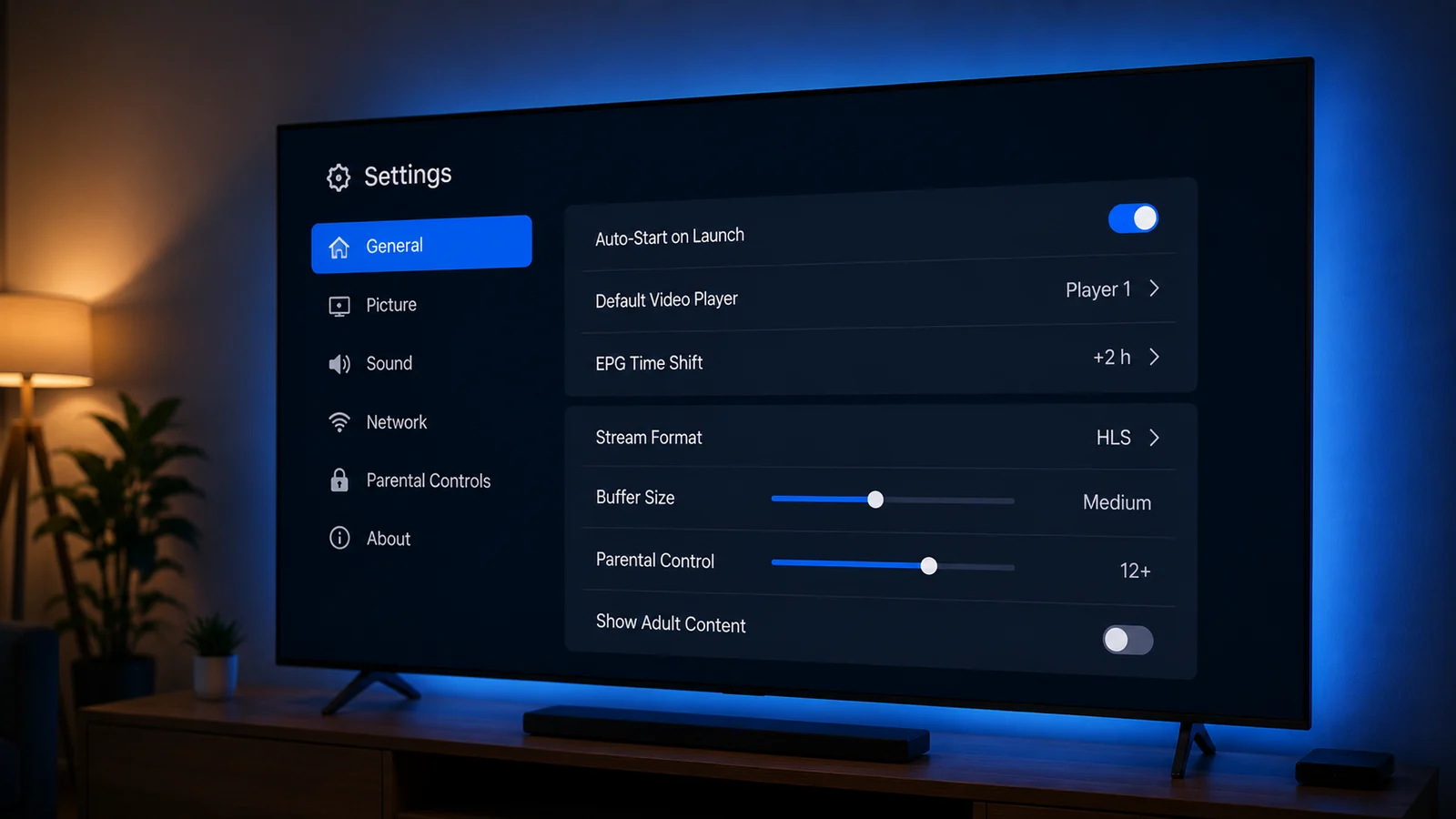
The Better Option: Pair Your Roku TV with a $25 Streaming Stick
Here is the advice that actually solves the problem instead of patching it: keep your Roku TV, and plug a cheap streaming stick into a spare HDMI port. A Fire TV Stick regularly sells around $25 on sale; basic Android TV boxes start near $20. Either one turns the weakest IPTV platform into one of the strongest, because both run native player apps with direct streams — full 4K/FHD where available, instant channel zapping, working EPG, and zero dependence on your phone staying awake.
The everyday experience looks like this: press Input on your TV remote, switch from the Roku home screen to the stick's HDMI port, and open TiviMate or IPTV Smarters Pro. Your Roku apps stay exactly where they were for everything else. Total added cost is less than a single month of a typical cable bill, and less than the difference between Watchit's 3-month and 12-month plans.
If you go this route, our guides to the best IPTV setup on Android devices cover player choice and settings in detail. And because Watchit credentials are device-agnostic, subscribers who start with mirroring and add a stick later just log in on the new device — standard plans allow 1 device at a time, so signing in on the stick simply becomes your active screen.
How Watchit Works on Roku Setups (Mirroring Setup Step-by-Step)
The numbered walkthrough above covers the button presses; this section covers the decisions around them, because small choices make the difference between a smooth evening and a frustrating one.
Pick the strongest source device you own. A recent Android phone or a Windows laptop mirrors more smoothly than a five-year-old budget tablet. The source decodes the stream and re-encodes the mirror simultaneously, so processing power matters.
Put both devices on 5 GHz Wi-Fi. Miracast traffic and the IPTV stream share your wireless spectrum. On congested 2.4 GHz, you're inviting stutter. If your router broadcasts separate band names, join the 5 GHz one on both the Roku and the source.
Set your player to a sensible stream format. In IPTV Smarters Pro, the default player settings work for most users; if you see buffering, switching the stream format between HLS and MPEG-TS in settings often resolves it.
Keep the source plugged in and set screen timeout to Never for the session. The single most common “my IPTV died mid-game” report on mirrored setups is a phone that simply went to sleep.
Once the chain works, the viewing itself is ordinary in the best way: EPG grid, category lists, favorites, and the same channel lineup every other Watchit device sees.
Roku vs FireStick vs Android TV for IPTV: Honest Comparison
The comparison table above gives the quick read; here is the fair-minded verdict behind it.
Roku remains an excellent general streaming device — arguably the most polished interface in the industry, fast search, quiet software updates, and a remote your grandmother can use. Its closed store is a feature for mainstream streaming and a wall for IPTV. Score it high for everything except this one use case.
Fire TV Stick is the pragmatic IPTV champion. Sideloading through the Downloader app is a two-minute job, TiviMate and IPTV Smarters Pro run natively, and the hardware is cheap enough to buy on impulse. The interface pushes Amazon content harder than Roku pushes anything, which some people find noisy.
Android TV / Google TV is the enthusiast pick: Play Store access means players install like any normal app, and higher-end boxes offer more processing headroom for 4K streams. Budget boxes vary wildly in quality, so stick to known brands.
Bottom line for a Roku TV owner: keep the Roku experience you like, add a $25 stick for IPTV, and you have the best of both. If you're choosing a first streaming device from scratch specifically for IPTV, Roku is the one to skip — the dedicated IPTV box guide ranks the alternatives in depth.
Troubleshooting Mirrored IPTV on Roku (Lag, Audio Sync, Disconnects)
Mirroring adds a wireless hop between player and screen, and each symptom points to a specific link in that chain.
Lag or stutter: First rule out the stream by playing the same channel on the phone alone; if it's smooth there, the mirror link is the bottleneck. Move the source device within a few feet of the TV, switch both devices to 5 GHz Wi-Fi, and close background apps on the phone. On Windows, plugging the laptop into power raises its wireless performance profile.
Audio out of sync: Restart the mirroring session first — sync drift accumulates over long sessions. If it returns quickly, try AirPlay instead of Miracast on supported Roku models, or change the audio output setting on the Roku from auto to stereo, which decodes faster on some soundbars.
Random disconnects: Usually the source device sleeping or the router rotating channels. Set screen timeout to Never during viewing, disable battery optimization for your casting function, and if your router supports it, pin the 5 GHz channel instead of leaving it on auto.
Persistent poor quality: That's the compression ceiling of mirroring itself, and no setting removes it. It is the honest cost of this method — and the point at which most households conclude the $25 stick pays for itself. Sports viewers especially should read the IPTV for sports guide before settling on mirroring as a permanent solution.
One Login. Every Method. Any Screen.
Whether you mirror to your Roku TV now or add a FireStick next month, the same Watchit credentials carry over — 22,000+ channels, 80,000+ VOD titles, and WhatsApp support whenever a setting fights back.
Frequently Asked Questions
Everything you need to know before you subscribe. Still have questions? Our support team is available 24/7.
Related IPTV guides and plans
Watch Watchit Your Way: Test Your Roku Setup Before Paying
Run the 24-hour free trial through your exact mirroring chain — or your new stick — then pick a plan: 3 months for $25, 6 for $45, 12 for $70, or Multi-Screen at $140 for 3 simultaneous screens. PayPal, card, or crypto, with 24/7 WhatsApp support standing by.